Monitor Arms & Desk Mounts - Professional Workspace Solutions
Monitor arms transform cluttered desks into clean, ergonomic workspaces. After years of setting up home offices alongside our TV mounting work, we've seen how the right monitor positioning improves comfort and productivity. Monitor arms free up desk space, allow perfect height and angle adjustment, and let you push screens back when you need the surface area. Whether you're running a single ultrawide, dual monitors for productivity, or a triple-screen trading setup, there's an arm configuration that works. The key is matching arm capacity to your monitor weight, choosing the right mounting method for your desk, and getting the ergonomic positioning dialed in. A good monitor arm pays for itself in reduced neck strain alone.
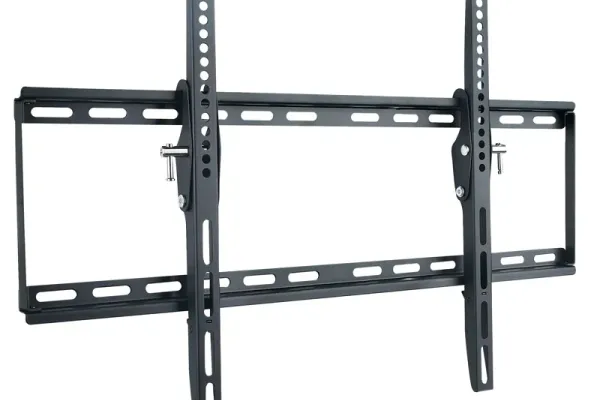
🖥️ Single Monitor Arms - Clean & Adjustable
Single monitor arms are the foundation of an ergonomic desk setup. They replace bulky monitor stands, free up valuable desk space, and allow infinite positioning adjustment. Quality arms use gas-spring or mechanical spring mechanisms that let you move your monitor effortlessly and have it stay exactly where you put it. Look for solid construction (aluminum or steel), adequate weight capacity for your monitor, and smooth adjustment mechanisms. Cable management channels keep things tidy. For most users, a single arm with desk clamp installation is the easiest upgrade with the biggest impact on workspace comfort.
| Picture | Product | Shop |
|---|---|---|
 |
Amazon Basics Single Arm |  |
 |
Ergotron LX Desk Mount | |
 |
VIVO Single Monitor Arm | |
 |
Herman Miller Flo | |
💡 Selection Tips: Weigh your monitor before purchasing (including stand) • Gas-spring arms allow easier repositioning • Verify VESA compatibility (75x75 or 100x100mm most common) • Check desk thickness for clamp compatibility
Browse All: Single Monitor Arms on Amazon
🖥️🖥️ Dual Monitor Arms - Productivity Powerhouse
Dual monitor setups are the productivity standard for knowledge workers, programmers, and anyone who benefits from expanded screen real estate. Dual arms mount both monitors to a single base, keeping your desk clean while allowing independent positioning of each screen. You can angle them toward each other, stack one above the other, or position them however works best for your workflow. Quality dual arms maintain stability even with two large monitors and allow smooth adjustment without the whole setup wobbling. The key spec is per-arm weight capacity - make sure each arm can handle your monitor's weight independently.
| Picture | Product | Shop |
|---|---|---|
 |
Ergotron LX Dual Side-by-Side | |
 |
VIVO Dual Gas Spring | |
 |
Amazon Basics Dual Arm | |
 |
Dual Stacked (Vertical) | |
💡 Dual Setup Considerations: Side-by-side requires wider desk space • Stacked configurations work on narrower desks • Consider matching monitor sizes for seamless experience • Primary monitor should be directly in front, secondary angled
Browse All: Dual Monitor Arms on Amazon
🖥️🖥️🖥️ Triple & Multi-Monitor Mounts
Triple monitor setups are popular with traders, programmers, streamers, and simulation gamers who need maximum screen real estate. Multi-monitor mounts require robust construction to handle the combined weight and maintain stability. Freestanding options with weighted bases don't require desk clamping but take up floor space. Desk-mounted triple arms need sturdy desks that can handle the leverage forces. Some setups use combinations of arms - a dual arm plus a separate single arm sometimes works better than an integrated triple mount.
| Picture | Product | Shop |
|---|---|---|
 |
VIVO Triple Monitor Mount | |
 |
Freestanding Triple Stand | |
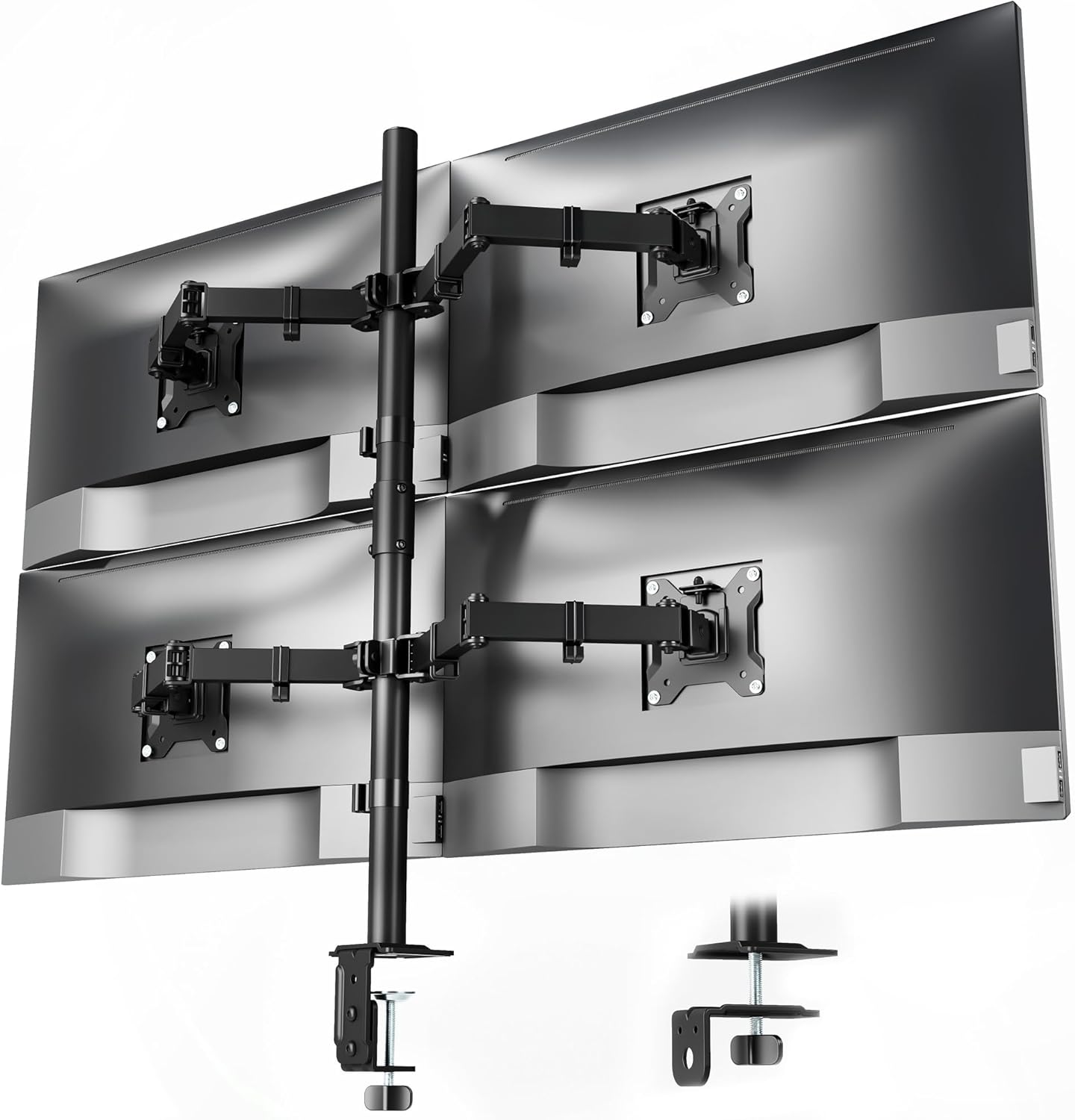 |
Quad Monitor Mount (2x2) | |
💡 Multi-Monitor Tips: Verify total weight capacity of mount system • Consider desk reinforcement for heavy setups • GPU must support desired monitor count • Matching monitors ensure seamless experience
Browse All: Triple Monitor Mounts on Amazon
📺 Ultrawide & Heavy Monitor Arms
Ultrawide monitors (34-49 inches) and large heavy displays need beefier arms than standard monitors. A 49-inch super-ultrawide can weigh 30-40 lbs - well beyond typical arm capacity. Look for arms specifically rated for ultrawide use with capacities of 35+ lbs. These arms have reinforced construction, stronger gas springs, and more robust mounting hardware. VESA patterns on ultrawides are often 100x100mm (same as regular monitors), but verify compatibility as some use non-standard patterns.
| Picture | Product | Shop |
|---|---|---|
 |
Ergotron HX (Heavy Duty) | |
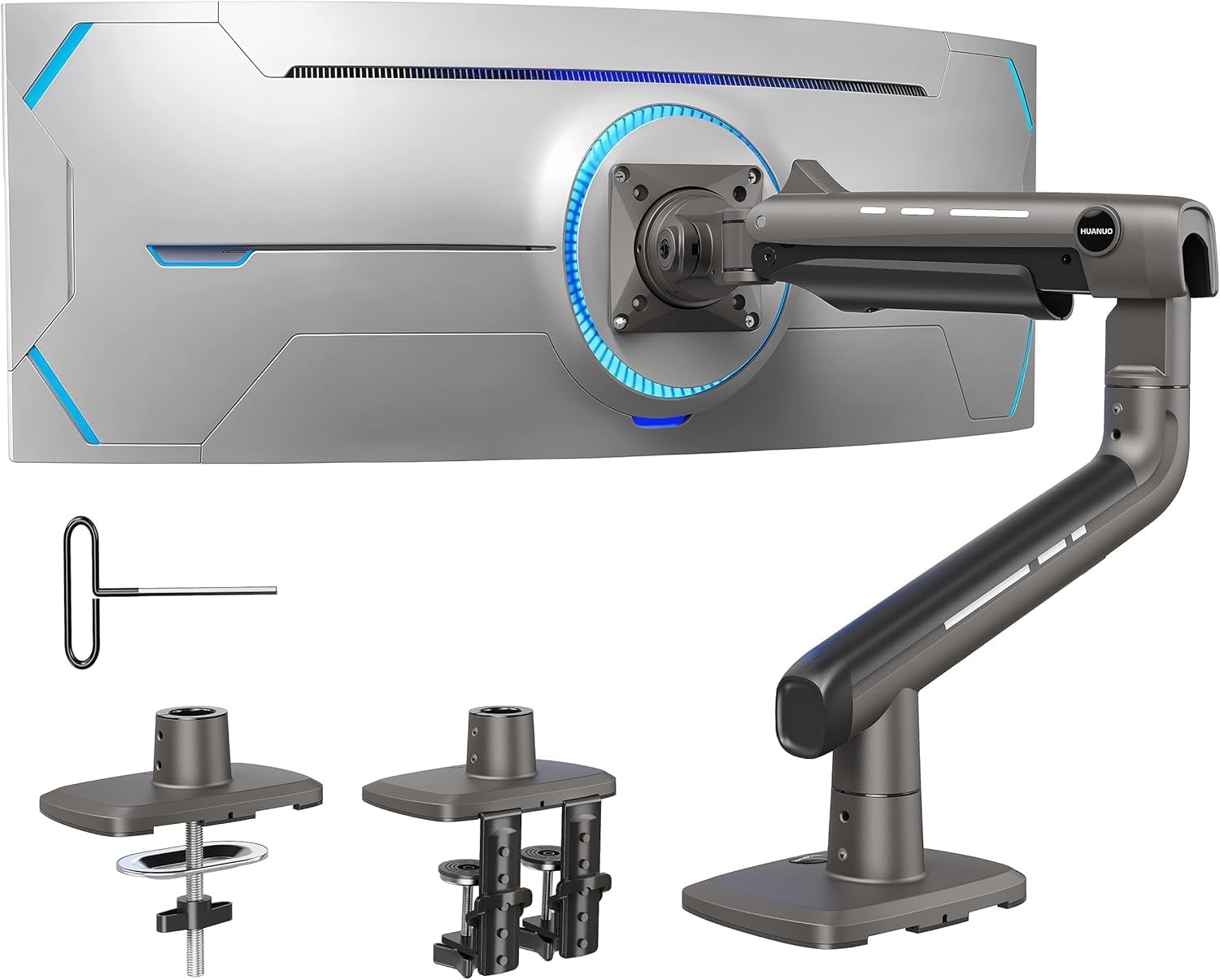 |
Amazon Basics Premium Heavy Duty | |
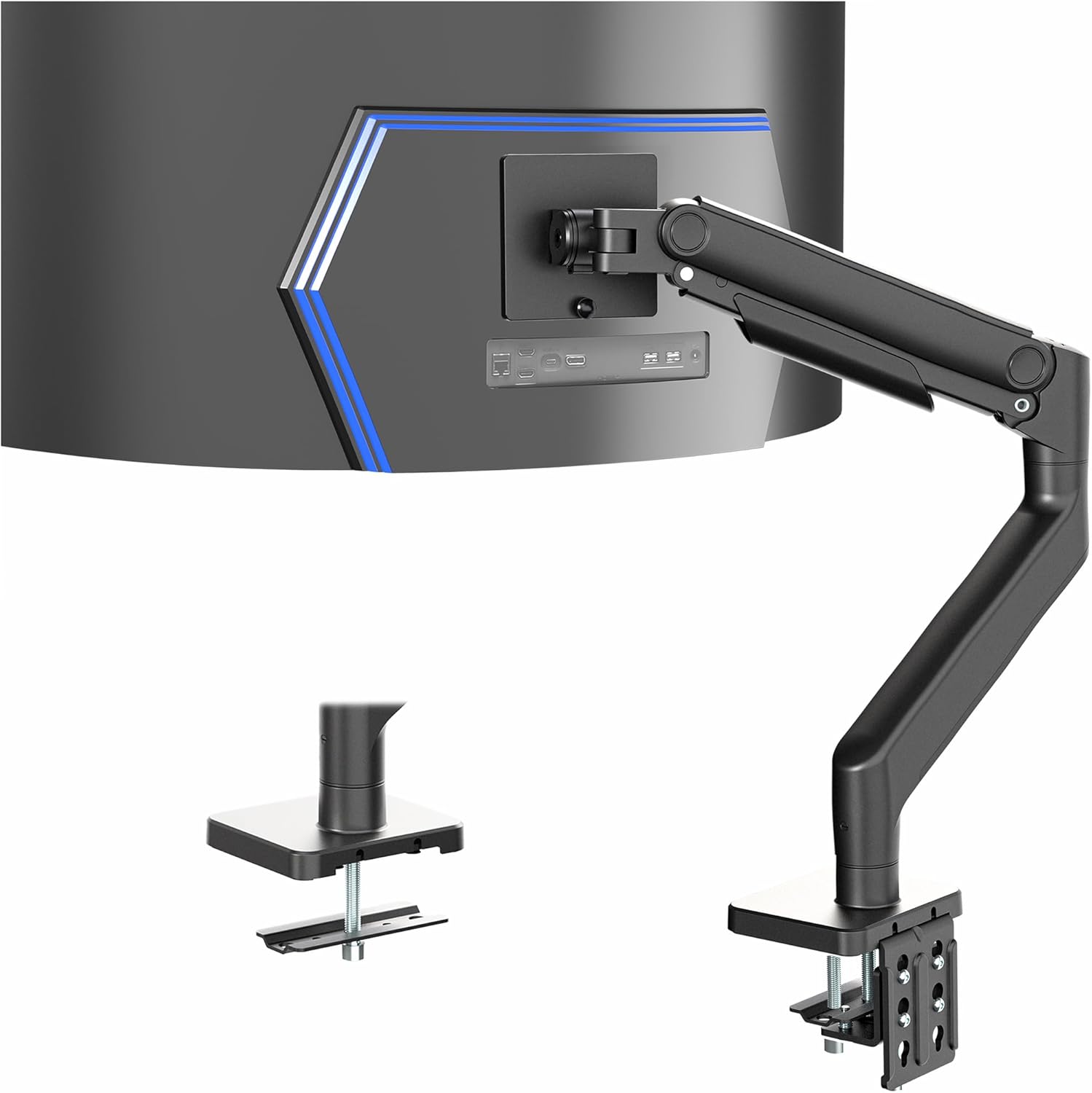 |
49" Ultrawide Specific | |
💡 Ultrawide Considerations: Verify exact monitor weight including stand hardware • Check VESA pattern compatibility • Heavier monitors need stronger desk mounting points • Consider wall mounting for heaviest displays
Browse All: Ultrawide Monitor Arms on Amazon
🔧 Monitor Arm Mounting Options
How you attach a monitor arm to your desk matters for stability and flexibility. C-clamp mounting is most common - it clamps to the desk edge and works with most desk thicknesses (typically 0.5-3 inches). Grommet mounting goes through a hole in the desk and provides more stability, especially for heavy setups. Some desks have built-in cable management holes perfect for grommet mounts. Wall mounting removes weight from the desk entirely and works great for standing desk setups where the desk moves. Consider your desk material - glass desks may need reinforcement plates, and particle board can crack under heavy clamp pressure.
Mounting Type Comparison:
| Mount Type | Best For | Considerations |
|---|---|---|
| C-Clamp | Most desks, Quick install | Requires edge clearance, Visible clamp |
| Grommet | Heavy setups, Clean look | Requires hole in desk, More permanent |
| Wall Mount | Standing desks, Maximum space | Permanent installation, Monitor doesn't move with desk |
| Freestanding | No desk modification | Takes desk/floor space, Easy repositioning |
💡 Desk Compatibility: Measure desk thickness before purchasing • Verify edge overhang clearance for C-clamps • Particle board desks may need reinforcement plates • Glass desks require special considerations
Browse Mounting Hardware: Monitor Arm Mounting on Amazon
💺 Ergonomic Setup Guidelines
The whole point of a monitor arm is better ergonomics - but you need to position things correctly to get the benefit. Poor positioning with a monitor arm is just as bad as a poor position without one.
Optimal Monitor Positioning:
- Height: Top of screen at or slightly below eye level
- Distance: Arm's length away (20-26 inches typical)
- Angle: Slight upward tilt (10-20°) to reduce neck strain
- Position: Primary monitor directly in front, not off to the side
Dual Monitor Ergonomics:
- If one is primary: Center that monitor, angle secondary toward you
- If equally used: Center the gap between monitors in front of you
- Match heights for seamless movement between screens
- Angle both slightly inward for comfortable viewing
Additional Ergonomic Accessories:
| Product | Purpose | Shop |
|---|---|---|
| Laptop Stand | Raise laptop screen to monitor height | Shop |
| Monitor Light Bar | Reduce eye strain with bias lighting | Shop |
| Keyboard Tray | Proper typing height and angle | Shop |
❓ Frequently Asked Questions - Monitor Arms
Find Your Perfect Monitor Arm Setup
Ready to upgrade your workspace? Browse our recommended monitor arms for single, dual, and multi-monitor setups. All products selected for build quality, ergonomic adjustability, and long-term reliability.